

Sponsored by Magic Hour
This article was prepared with AI assistance and reviewed for accuracy and clarity.
An illustration can explain a product, establish a mood, or give a website a recognizable visual identity. Adding movement changes the job. A decorative scene might benefit from drifting clouds, while a diagram needs every label and relationship to remain clear. Before choosing a tool, decide what motion should help a visitor understand.
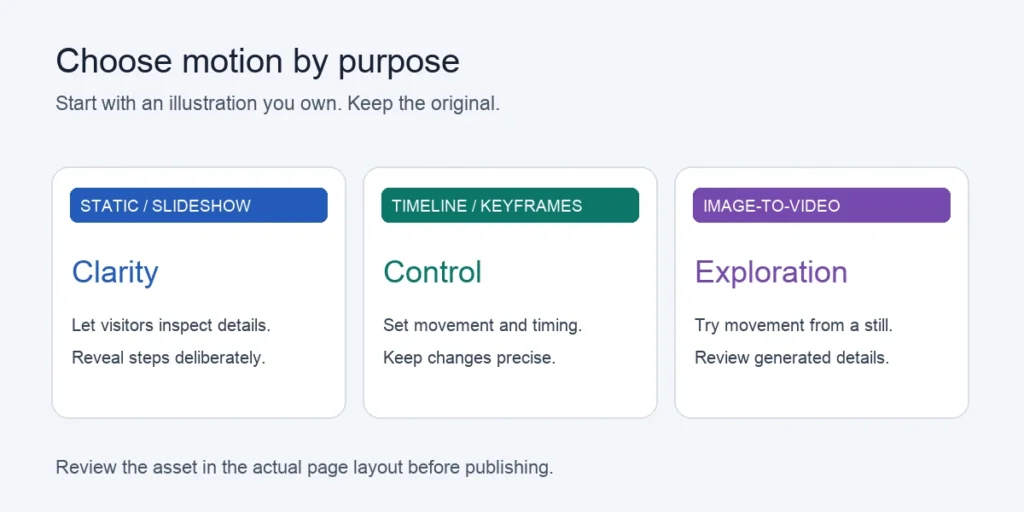
Start with artwork you own or have permission to adapt and publish. Keep the original file so you can return to it when an animation feels distracting or changes the meaning. Then choose among three practical approaches: keeping the illustration static or presenting a sequence, animating it with a timeline editor, or generating video from the image. Each offers a different balance of control and flexibility.
1. Keep it static, or build a deliberate slideshow
A still illustration is a useful baseline because visitors can inspect it at their own pace. It works particularly well when the artwork contains instructions, interface details, small lettering, or a complicated process. Movement can compete with those details instead of clarifying them.
A slideshow adds sequence without requiring the drawing itself to change. For a three-stage process, create three separate illustrations and let visitors advance through them. Each frame can show a meaningful change, with nearby text explaining the transition. This approach gives the creator direct control over what appears in every image.
The tradeoff is that a sequence will not produce the continuous movement of an animated scene. It also creates several assets to maintain. If the explanation depends on one object moving along a precise path, a slideshow might feel abrupt. But if the goal is to reveal information in steps, that restraint can be useful.
Before moving beyond this option, ask whether the website already communicates the idea clearly. Motion deserves a purpose beyond making the page feel busier. A quiet illustration with a strong caption may be the most effective version.
2. Use a timeline editor for controlled motion
A timeline editor makes sense when you know exactly what should move, when it should move, and where it should stop. Keyframes define changes over time, such as a layer moving between two positions or fading into view. Separating the illustration into layers can make it easier to move a foreground object while leaving the background untouched.
This workflow suits a diagram that needs an arrow to travel between fixed points, a character that should enter at a particular moment, or a scene where only a few elements should animate. The creator sets the sequence rather than asking a model to interpret the whole image.
The cost is preparation and editing effort. A flattened image may need rebuilding into layers, and convincing movement can require careful timing. A straightforward pan across an illustration is easier than recreating a character’s walk. Choose a scope that matches the source assets and the time available.
Keep essential text outside the exported animation when possible. Website text is easier to update, read, and adapt to different layouts. If the animation illustrates a process, provide a written explanation too, so the visitor can understand it without watching the whole sequence.
3. Try generative image-to-video for exploratory movement
Generative image-to-video offers another route when the goal is to explore the atmosphere or movement of a scene rather than specify every change. It uses a still image as a starting point and generates subsequent frames. That can suit an owned landscape illustration or a decorative scene where some visual variation is acceptable.
For example, Magic Hour image-to-video lets you upload artwork, optionally describe the movement, generate a clip, and preview and download an MP4. Available formats and capabilities depend on the selected model. Check the current options before deciding how the finished asset will fit your page.
The central tradeoff is predictability. Generated motion can alter fine details, shapes, or lettering. Treat each result as a candidate to review, not an automatic replacement for the original artwork. A clip that looks appealing at a glance can still misrepresent a diagram or change a character’s appearance.
Begin with one clear motion intention and inspect the whole result. Check whether the subject remains recognizable, whether the movement supports the scene, and whether anything new appears that you did not intend. If precise geometry or exact text matters, the controlled timeline approach may be easier to approve.
Make the decision in the context of the page
Evaluate the asset alongside the heading, body text, and call to action it will accompany. Review the page on a narrow screen as well as a desktop layout. A crop that looks balanced in a wide hero area may hide the illustration’s most useful detail on mobile.
Provide a still alternative and appropriate playback controls for moving content. Avoid making the animation the only source of essential information. Also check the exported file’s size and how the page behaves while it loads; a visual flourish should not prevent visitors from reaching the content.
Choose a static image or slideshow for clarity and deliberate sequence, a timeline editor for exact movement, and generative video for visual exploration. The right workflow follows the illustration’s purpose. Keep the original, review the result in its real layout, and publish the version that helps visitors understand the page.