

All commands come from Anthropic’s official setup docs as of November 18, 2026. Recheck them every month.
I have used Claude Code for months. I use it to build WordPress plugins, Flutter apps, and Python tools. The install command usually finishes in a minute or two, and you can be in your first session within about five minutes. Many older guides still show the npm method, which you no longer need.
This guide shows the exact commands I use, taken from Anthropic’s official docs.
Quick answer: how do I install Claude Code?
Open a terminal and run one command:
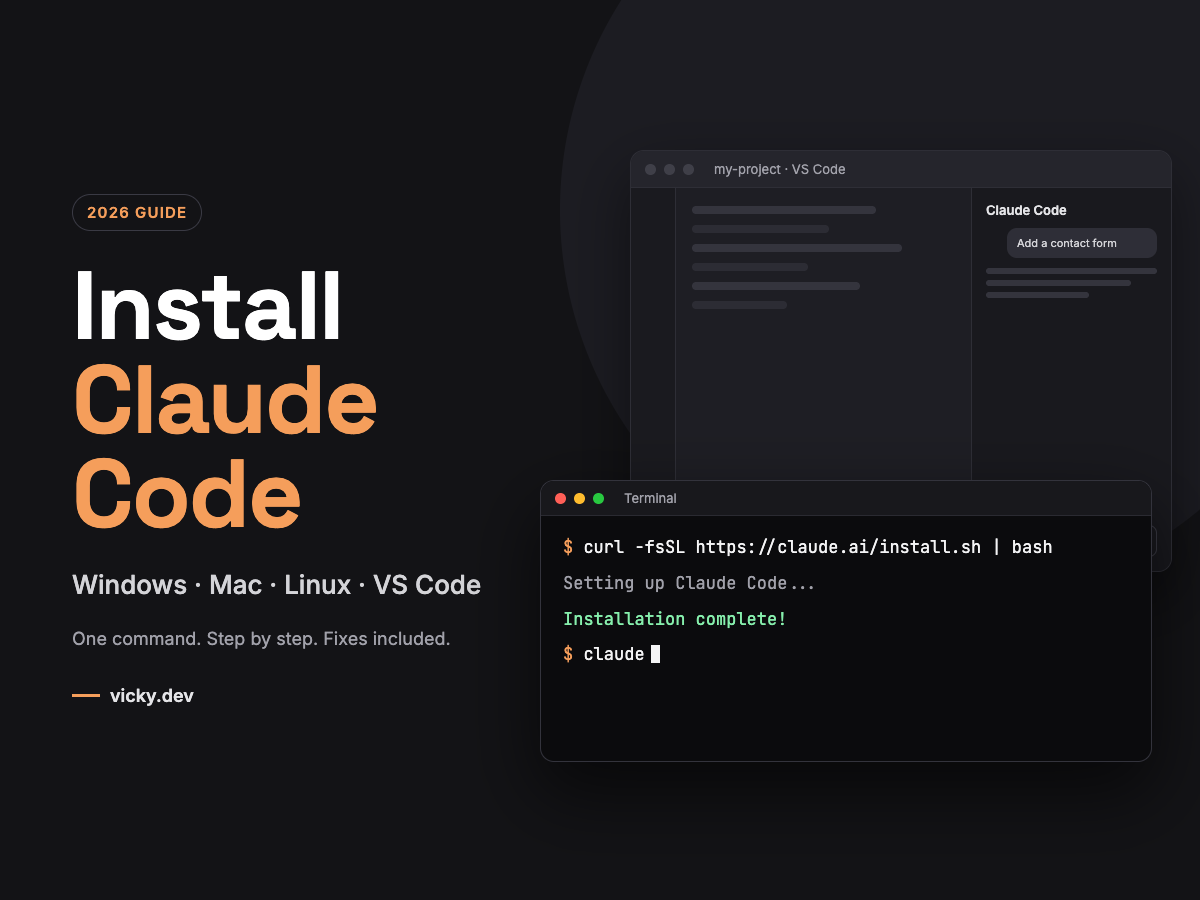
- Mac, Linux, or WSL: curl -fsSL https://claude.ai/install.sh | bash
- Windows PowerShell: irm https://claude.ai/install.ps1 | iex
- Windows CMD: curl -fsSL https://claude.ai/install.cmd -o install.cmd && install.cmd && del install.cmd
Then open a new terminal, go to your project folder, and type claude. Log in through your browser. You need a paid Claude plan (Pro, Max, Team, or Enterprise) or an Anthropic Console account. The free plan does not include Claude Code.
Use VS Code? Search for Claude Code by Anthropic in the Extensions view, install it, and sign in. You do not need the terminal for the chat panel.
What do you need before installing Claude Code?
You need a supported computer, an internet connection, and a paid Claude account. You do not need Node.js for the main installer.
| Requirement | Details |
|---|---|
| Mac | macOS 13.0 or newer |
| Windows | Windows 10 version 1809 or newer, or Windows Server 2019 or newer |
| Linux | Ubuntu 20.04+, Debian 10+ or Alpine Linux 3.19+ |
| Hardware | 4 GB RAM or more, x64 or ARM64 processor |
| Shell | Bash, Zsh, PowerShell, or CMD |
| Account | Claude Pro, Max, Team, Enterprise, or an Anthropic Console account |
| Location | A country Anthropic supports |
Can you use Claude Code for free? No. The free Claude plan does not include Claude Code. You can still use Claude itself for free in other ways. I cover them in my guide on ways to use Claude for free.
How to install Claude Code on Mac
On a Mac, the native installer is the best choice. It updates itself in the background.
- Open the Terminal app. Press Command + Space, type Terminal, and press Enter.
- Paste this command and press Enter:
curl -fsSL https://claude.ai/install.sh | bash
- Wait for it to finish. The command shows no progress bar while it downloads.
- Close Terminal and open it again.
- Type claude –version to confirm the install.
Prefer Homebrew? Run this instead:
brew install --cask claude-code
The claude-code cask follows the stable channel, which runs about a week behind. Use claude-code@latest if you want new versions right away. Homebrew installs do not update themselves, so run brew upgrade claude-code now and then.
How to install Claude Code on Windows
Claude Code now runs natively on Windows. You do not need WSL, Node.js, or admin rights.
Option 1: PowerShell (recommended)
- Open the Start menu, type PowerShell, and open Windows PowerShell. Do not pick the “(x86)” entry. It is 32 bit and the install fails there.
- Paste this command and press Enter:
irm https://claude.ai/install.ps1 | iex
- When it finishes, close PowerShell and open a new window.
- Type claude –version to confirm.
Option 2: Command Prompt (CMD)
If you use CMD, run this full command:
curl -fsSL https://claude.ai/install.cmd -o install.cmd && install.cmd && del install.cmd
How do you know which shell you are in? PowerShell shows PS C:\Users\YourName>. CMD shows C:\Users\YourName> with no PS in front.
Option 3: WinGet
winget install Anthropic.ClaudeCode
WinGet installs do not update themselves. Run winget upgrade Anthropic.ClaudeCode from time to time.
Should you install Git for Windows?
Yes, I recommend it. Git for Windows gives Claude Code Bash so that it can run Bash commands and scripts. Without it, Claude Code uses PowerShell instead. It still works, but many project scripts expect Bash. Download it from git-scm.com.
Native Windows or WSL?
| Option | Needs | Sandboxing | Best for |
|---|---|---|---|
| Native Windows | Nothing (Git for Windows optional) | Not supported | Windows projects and tools |
| WSL 2 | WSL 2 enabled | Supported | Linux toolchains or sandboxed commands |
| WSL 1 | WSL 1 enabled | Not supported | Only if WSL 2 is not available |
For WSL, open your Linux distribution and run the Mac and Linux command there. Install and launch Claude inside the WSL terminal, not from PowerShell.
How to install Claude Code on Linux
On Linux, the same one-line installer works on Ubuntu, Debian, and most other distributions:
curl -fsSL https://claude.ai/install.sh | bash
Then open a new terminal and run claude –version.
Install with apt on Ubuntu or Debian
Anthropic also runs a signed apt repository. Use it if you manage servers with your package manager:
sudo install -d -m 0755 /etc/apt/keyrings
sudo curl -fsSL https://downloads.claude.ai/keys/claude-code.asc \
  -o /etc/apt/keyrings/claude-code.asc
echo "deb [signed-by=/etc/apt/keyrings/claude-code.asc] https://downloads.claude.ai/claude-code/apt/stable stable main" \
  | sudo tee /etc/apt/sources.list.d/claude-code.list
sudo apt update
sudo apt install claude-code
To upgrade later, run sudo apt update && sudo apt upgrade claude-code. Fedora and RHEL users get a dnf repository, and Alpine users get an apk one. See the official setup page for those.
Installing on a small VPS
If the install stops with the word Killed, your server ran out of memory. The installer needs about 512 MB free. On a 1 GB droplet, add a 2 GB swap file first:
sudo fallocate -l 2G /swapfile
sudo chmod 600 /swapfile
sudo mkswap /swapfile
sudo swapon /swapfile
Then run the installer again. Keep in mind that Anthropic lists 4 GB of RAM as the minimum for running Claude Code.
How to install the Claude Code extension in VS Code
This is the method I prefer, and it is how I use Claude Code most of the time. I like it more than the terminal for two reasons.
First, I work on several projects side by side. In VS Code, each project sits in its own window with its own Claude panel, so I always know which chat belongs to which project. Juggling many terminal sessions gets confusing fast.
Second, it feels like chatting with Claude. You type in a chat box, read the reply, and review changes right next to your code. If you already use Claude in the browser, you will feel at home in minutes. Anthropic also calls the extension the recommended way to use Claude Code in VS Code.
You need: VS Code 1.94.0 or newer and a paid Claude plan (Pro, Max, Team or Enterprise) or a Console account. You do not need an API key.
- Open VS Code and press Ctrl+Shift+X (Windows and Linux) or Cmd+Shift+X (Mac) to open Extensions.
- Search for Claude Code. Pick the one published by Anthropic (ID anthropic.claude-code) and click Install.
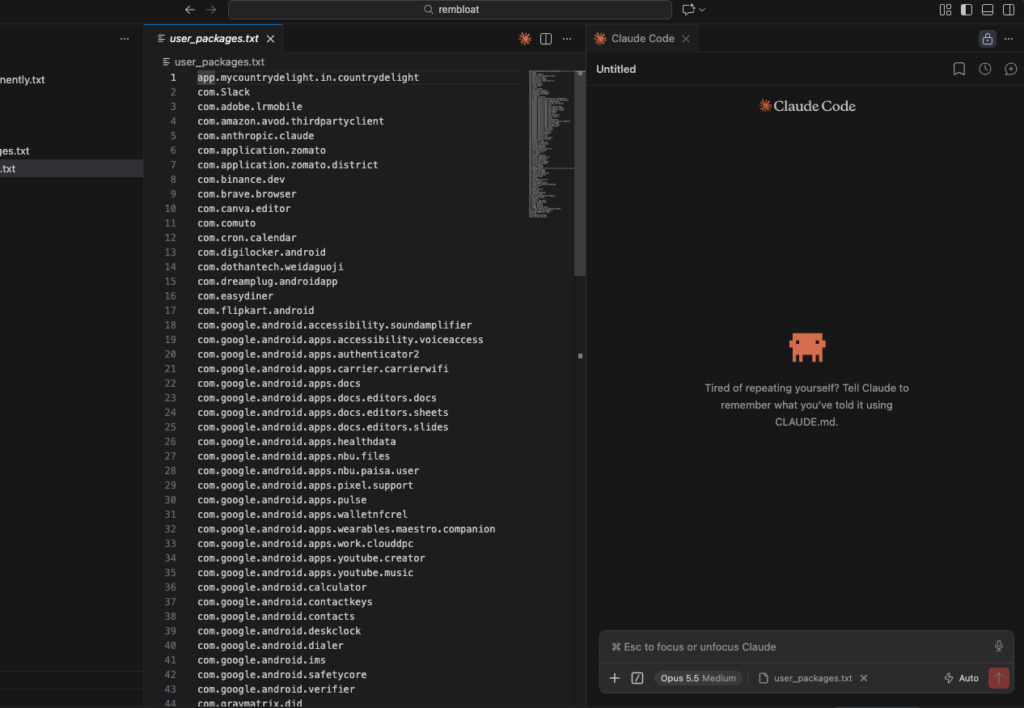
- Open any file. Click the Spark icon in the top right corner of the editor. You can also click Claude Code in the bottom-right status bar.
- Click Sign in and approve access in your browser.
- Type your first prompt in the panel.
If the extension does not show up after installing, open the Command Palette and run Developer: Reload Window.
 Do you need the terminal install as well?
Not for the chat panel. The extension ships with its own built-in copy of Claude Code. But it does not add the claude command to your terminal. If you also want to type claude in the VS Code terminal, run the install command for your system from the sections above.
I still keep the terminal version installed for the few commands the panel lacks. Both share the same conversation history. Run claude –resume in the terminal to pick up a chat you started in the panel.
Features I use every day in the extension
- Selected code goes in automatically. Highlight lines and Claude sees them. Press Alt+K (Windows and Linux) or Option+K (Mac) to insert a reference like @file.ts#5-10.
- @ mentions. Type @ and a file or folder name to give Claude that context.
- Plan mode. Type /plan and Claude writes a plan as a document. You add comments before it touches any code.
- Diff review. New sessions usually start in Auto mode, where Claude edits most files without asking. To review every edit, click the mode indicator under the prompt box and pick Manual. Each edit then opens as a side-by-side diff, and you accept or reject each change.
- Checkpoints. Hover over a message and rewind your code to that point if Claude goes the wrong way.
- Several chats at once. Open conversations in separate tabs or windows.
Prefer the terminal look? Open Settings, go to Extensions > Claude Code and tick Use Terminal.
Using Cursor or another VS Code fork?
The same extension works in Cursor. Search for Claude Code in its Extensions view. Other forks can install it from the Open VSX registry.
Extension or terminal: which is better?
| Feature | Terminal (CLI) | VS Code extension |
|---|---|---|
| Side-by-side diffs | Yes, when run in the VS Code terminal | Built in |
| All slash commands and skills | Yes | A subset |
| MCP servers | Yes | Yes |
| Checkpoints | Yes | Yes |
| ! shortcut to run Bash | Yes | No |
| Tab completion | Yes | No |
My take: start with the extension. It is easier to learn, and seeing every edit before it lands builds trust fast. I use it for almost all my work and open the terminal only when I need a command the panel does not have.
How to log in and start your first Claude Code session
You log in once through your browser, and Claude Code remembers you.
- Open a terminal inside your project folder. For example: cd ~/projects/my-site
- Type claude and press Enter.
- Your browser opens. Sign in with your Claude account and approve access.
- Go back to the terminal. You are now in a Claude Code session.
- Type /init. Claude reads your project and creates a CLAUDE.md file. This file holds notes about your project, and Claude reads it at the start of every session.
Browser did not open? Press c to copy the login link, then paste it into any browser. This also helps on a remote server over SSH. After you sign in, the browser shows a code. Paste it back into the terminal.
Using an API key instead? If the ANTHROPIC_API_KEY variable is set, Claude Code asks once whether to use it and skips the browser login. Remove an old key if you want to use your Pro or Max plan.
How to check that Claude Code is installed correctly
Run claude –version in a new terminal. A working install prints a version number, such as 2.1.211 (Claude Code).
For a full health check, run:
claude doctor
It checks your install, your settings files, and your update status. It does not start a session, and it suggests a fix for each warning it finds.
How to fix common Claude Code install errors
Most install errors come from the wrong command for your shell, or a missing PATH entry. Find your error below.
| Error you see | What it means | Fix |
|---|---|---|
| claude is not recognized or command not found: claude | The install folder is not on your PATH | Open a new terminal first. If it still fails, use the PATH fix below |
| ‘irm’ is not recognized | You are in CMD, not PowerShell | Open PowerShell, or use the CMD command |
| The token ‘&&’ is not a valid statement separator | You ran the CMD command in PowerShell | Use irm https://claude.ai/install.ps1 | iex |
| A parameter cannot be found that matches parameter name ‘fsSL’ | You ran the Mac command in PowerShell | Use the PowerShell command |
| Syntax error near unexpected token ‘<‘ | The install link returned a web page | Wait a few minutes and retry, or use Homebrew or WinGet |
| curl: (22) … error: 403 | A proxy is blocking the download, or your region is not supported | Check your network, VPN or proxy settings |
| Killed on Linux | The server ran out of memory | Add swap space, then retry |
| Claude Code does not support 32-bit Windows | You opened PowerShell (x86) | Open the normal Windows PowerShell |
| App unavailable in region | Claude Code is not offered in your country | No install fix. Check Anthropic’s supported countries |
PATH fix for Mac and Linux
The installer puts Claude in ~/.local/bin. Add that folder to your PATH. For Zsh, the Mac default:
echo 'export PATH="$HOME/.local/bin:$PATH"' >> ~/.zshrc
source ~/.zshrc

For Bash on Linux, use ~/.bashrc in place of ~/.zshrc.
PATH fix for Windows
The installer puts claude.exe in %USERPROFILE%\.local\bin. Add it to your user PATH in PowerShell:
$currentPath = [Environment]::GetEnvironmentVariable('PATH', 'User')
[Environment]::SetEnvironmentVariable('PATH', "$currentPath;$env:USERPROFILE\.local\bin", 'User')
Close the terminal and open a new one. If you use the terminal inside VS Code, restart VS Code too. It keeps the old PATH until you do.
Running Claude opens the desktop app instead? An older Claude Desktop version can take over the command on Windows. Update Claude Desktop to fix it.
How to update or uninstall Claude Code
The native installer updates Claude Code by itself in the background. New versions apply the next time you start it. To update right away, run:
claude update
Homebrew, WinGet and apt installs need a manual upgrade:
| Install method | Update command | Uninstall command |
|---|---|---|
| Native (Mac, Linux, WSL) | claude update | rm -f ~/.local/bin/claude && rm -rf ~/.local/share/claude |
| Native (Windows) | claude update | See the PowerShell commands below |
| Homebrew | brew upgrade claude-code | brew uninstall –cask claude-code |
| WinGet | winget upgrade Anthropic.ClaudeCode | winget uninstall Anthropic.ClaudeCode |
| apt | sudo apt update && sudo apt upgrade claude-code | sudo apt remove claude-code |
| npm | npm install -g @anthropic-ai/claude-code@latest | npm uninstall -g @anthropic-ai/claude-code |
To uninstall the native version on Windows, run in PowerShell:
Remove-Item -Path "$env:USERPROFILE\.local\bin\claude.exe" -Force
Remove-Item -Path "$env:USERPROFILE\.local\share\claude" -Recurse -Force
These commands keep your settings. Your settings and session history live in the ~/.claude folder and the ~/.claude.json file. Delete them only if you want a completely clean removal.
Should you install Claude Code with npm?
No, use the native installer unless you have a specific reason. Anthropic now lists npm under advanced options.
The npm package installs the same native binary. But it needs Node.js 22 or newer, and it can update itself only when your npm global folder is writable. If you still want it, run:
npm install -g @anthropic-ai/claude-code
Never add sudo to this command. It causes permission problems. If you already installed with npm and want to switch, uninstall the npm version first. Two installs at once can cause version mix-ups.
My setup tips after months of using Claude Code
These are the things that made the biggest difference for me.
- On a Mac, it just works. I installed Claude Code on my Mac and had no problems at all. No PATH fixes, no login trouble. If you are on a Mac, the one-line installer is all you need.
- Use plan mode first. This is the one thing I wish I knew on day one. Before any big change, type /plan and let Claude explain what it will do. You read the plan, fix anything you do not like, and only then let it touch your code. It saves you from undoing a lot of wrong edits.
- Work locally, then deploy. I sometimes run Claude Code on my servers over SSH. But most of the time I work on my local copy and deploy once I am happy with the changes. It is safer, and you can review everything before it goes live. If you do log in on a server, press C to copy the login link and open it on your own computer.
- One VS Code window per project. I keep each project in its own window with its own Claude panel. That way, every chat stays tied to the right project.
If you are choosing between tools, read my Codex vs Claude Code comparison next.
Frequently asked questions
Is Claude Code free to install?
The installer is free. Using Claude Code needs a paid plan: Pro, Max, Team, Enterprise, or an Anthropic Console account with API billing.
Do I need Node.js to install Claude Code?
No. The native installer needs no Node.js. Only the npm method needs it, and that method requires Node.js 22 or newer.
Do I need admin rights on Windows?
No. The PowerShell and CMD installers work without running as Administrator.
Does Claude Code work on Windows without WSL?
Yes. It runs natively on Windows 10 (1809 or newer) and Windows 11. WSL 2 is only needed if you want sandboxed command execution.
Where does Claude Code get installed?
On Mac and Linux, the launcher sits at ~/.local/bin/claude. On Windows, it sits at %USERPROFILE%\.local\bin\claude.exe.
Can I use Claude Code without the terminal?
Yes. The Claude desktop app for Mac, Windows, and Linux lets you use Claude Code through a normal window.
How do I install a specific version of Claude Code?
Add the version number to the installer. On Mac or Linux: curl -fsSL https://claude.ai/install.sh | bash -s 2.1.89. Replace 2.1.89 with the version you need.
Does Claude Code update automatically?
The native install does. npm installs do too, as long as the npm global folder is writable. Homebrew, WinGet, and apt installs need a manual upgrade. For Homebrew and WinGet, you can turn on automatic upgrades by setting CLAUDE_CODE_PACKAGE_MANAGER_AUTO_UPDATE to 1.
Does the VS Code extension install the claude command?
No. The extension has its own built-in copy for the chat panel. To use Claude in a terminal, run the standalone installer, too.
Does Claude Code work in Cursor?
Yes. Install the same Claude Code extension from Cursor’s Extensions view.