


Connecting to an FTP server from a Mac is a daily task for almost every web professional. Whether you’re a web developer who deploys code to a server or a professional sharing files with clients, FTP is the go-to solution.
FTP, also known as File Transfer Protocol, is one of the oldest and most popular file-sharing systems. It works with the application layer of the OSI model, which makes the file exchange smooth. However, as any experienced user knows, the built-in macOS tools often fall short when it comes to features. That is why having a dedicated FTP client is beneficial. Even though there is SSH, FTP is still relevant for macOS and likely to remain the same in the future, too.
The reason behind this is that using SSH requires more knowledge. On the other hand, FTP offers a visual interface that is much simpler than SSH.

As you may already know, there are a lot of FTP clients available in the market. Although you can choose any of your choices and share files, your experience will depend on the choice you make. In this article, we are going to talk about macOS specifically, where Commander One has emerged as one of the best FTP clients.
There are various reasons behind it, such as security, modern features easy to use ui and advanced FTP capabilities. A typical FTP client offers the same old UI that we are familiar with. This is not the case with Commander One. It offers a consistent experience with advanced FTP support such as SFTP, FTPS, and FTP.
Connecting to an FTP Server with Commander
The process of connecting to an FTP server with Commander One is straightforward. You just need to follow a few steps. The process is user-friendly for both beginners and experienced users. Here are the steps to connect to an FTP server.
- First, download the Commander One dmg file from the official site https://ftp-mac.com/ and install it.
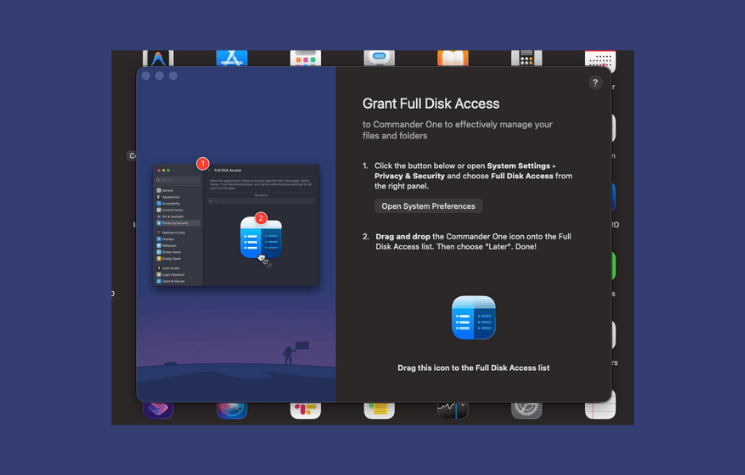 Once you install the file successfully, you need to visit the Connection Manager. You can do so by visiting Windows and then Connection Manager. Here, a connection window will pop up with various options such as FTP & SFTP and dropbox, google drive amazon s3 and more. You have to select the FTP and SFTP options.
- Now you will see a simple form-type interface where you have to add some inputs and a connection name.
- The next step is to enter the server address, port number, username, and password.
- In the “Remote path” field, you need to type the folder where your uploaded files will be stored.
That’s it, once the successful connection happens, you can start sharing, copying, and uploading files. All this will happen as if they were local files. Just like a typical FTP client, you will now see a two-column (panel) window. One of them is remote, and the other one is local.
Here, everything is visual, which makes it very easy to share files even for a beginner.
Note – In most cases, the connection happens seamlessly, but sometimes beginners can face issues. In such cases, most of the time, wrong credentials are the culprits. So if you find it difficult to make a connection, we recommend verifying the credentials.
Key Features of Commander One
Now that you have understood how to make a successful connection, let’s discuss the key features.
Key features of the Commander One include:
- Classical Dual-Pane Interface: One of the most prominent and core features is side by side view. You can view two different directories simultaneously. For example, your local “Downloads” folder in the left pane and a remote web server in the right. This setup makes sharing files as simple as drag and drop.
- Advanced File Management Toolkit: It’s not just limited to normal copying and moving files. It offers other professional tools:
- Operations Queue: You can start several high-volume transfers and let them run in the background. In the meantime, you can work on your other tasks.
- Batch Renaming: You can quickly rename entire groups of files according to specific rules.
- File Synchronization: It ensures your local environment and live server are perfectly aligned with minimal manual effort.
- Superior Security Standards: It uses AES-256-bit encryption, which ensures your remote connections are armored. It fully supports SFTP (SSH) and FTPS (SSL/TLS) protocols. As everything is protected, your credentials and sensitive data are safe and secure.
- Native Apple Silicon Optimization: Commander One is specifically built for modern hardware. It’s optimized for M1, M2, M3, M4, and the latest M5 chips. This ensures fast performance, instant previews, and significantly lower battery drain compared to older, non-native applications.
- Seamless Cloud Integration: Commander One bridges the gap between traditional servers and modern workflows. It allows you to access cloud services directly as local drives. Supported services include:
- Google Drive
- Dropbox
- Microsoft OneDrive
- Amazon S3
- FTP
- SFTP
- WebDAV
- OneDrive
- OpenStack Object Storage
- BackBlaze B2
- BOX.COM
- Mega
- pCloud
It combines many advanced tools into a single, high-performance interface. It offers a professional file management experience that far exceeds the capabilities of traditional FTP software.
Commander One’s Advantages Over Other FTP Clients
When choosing an FTP client for macOS, users often compare open-source apps vs modern solutions. Just like people, we also used to look for a good FTP client for our Mac. Although there are many great options available, we were missing an all-in-one tool that feels native and is simple and fast to use. The legacy tools like FileZilla and Cyberduck have been industry defaults for years.
Lately, we came across Commander One, which offers a modern approach that aligns better with the current macOS ecosystem. In our case, we have used all the leading options. The point here is they all work good the factor is the overall experience. We prefer Commander One because of its native feel and modern features.
1. A Modern Interface vs. Legacy UI
The most immediate difference is the user experience. FileZilla, although it works well, carries a cluttered, multi-window interface. If you have used it before, you may already know that it hasn’t seen a significant design upgrade in decades. It often feels like a Windows app rather than a native Mac app.
In contrast, Commander One is built from scratch for macOS. It offers a clean interface that integrates smoothly with Apple’s design language. We are mentioning this as most Mac users care a lot about apple design language.
2. Security and Usability
In professional file management, security is a foundational requirement. Other features can be compromised, but not security. Commander One addresses this by prioritizing an ironclad approach to data protection. Every online connection you make is wrapped in AES-256-bit encryption. It ensures that your sensitive files remain private across all remote servers.
A standout security feature is that all server credentials, including your logins and passwords, are stored locally within the macOS Keychain. By keeping this data on your own machine rather than a third-party server, Commander One reduces the risk of credential theft. It ensures you can share files seamlessly without worrying about security.
The app offers a top level security with a focus on effortless usability. It simplifies high-volume file transfers through intuitive features like drag-and-drop and batch processing. It allows you to move or rename hundreds of files with a single action.
Furthermore, for those working on unstable networks, the automatic reconnection feature is a lifesaver. You know how frustrating it is when you have to urgently transfer files, and it gets interrupted by a Wi-Fi drop. Luckily, that’s not the case here.
Commander One resumes the task the moment the connection is restored. This combination of “set-and-forget” reliability and deep encryption makes it the most secure and usable choice for Mac professionals.
Conclusion
This was all about the best FTP client for macOS. If you are looking for an easy and secure way to connect to FTP servers, Commander One is the best solution for Mac users.
It replaces the basic features of Finder with a powerful dual-pane system. It makes moving files as simple as dragging them from one side to the other. Whether you are a developer managing website files or just need to share data with a remote server, this app provides the speed and reliability you need.
it support for advanced security like SFTP and can handle multiple cloud accounts in one place. To be precise, Commander One is a macOS FTP feature with superpowers. It is a complete command center for your files. Optimized for the latest Mac hardware, it ensures your workflow remains fast and battery-efficient.
If you’re looking for a secure and user-friendly FTP client for your Mac, Commander One is the perfect choice.
With all that being said, try Commander One today by downloading the app and exploring its professional features for yourself.