


You open GeForce Experience to update a driver or grab a clip. Instead, you get this:
Something went wrong. Try rebooting your PC and then launch GeForce Experience. ERROR CODE: 0x0003
You reboot. It works. Then the same error is back next time.
Here is exactly what causes it and how to fix it — fastest solutions first, no fluff.
What Causes Error Code 0x0003
The error appears when GeForce Experience cannot start the background services it depends on, or when Windows networking is in a broken state.
Four causes account for almost every case:
NVIDIA services stopped or disabled — GeForce Experience requires these Windows services running at all times: NVIDIA Display Container LS, NVIDIA LocalSystem Container, NVIDIA Network Service Container, and NVIDIA Telemetry Container. If any are stopped or set to manual startup, you get 0x0003 at launch.
Corrupted Windows network stack (Winsock) — GeForce Experience authenticates with NVIDIA’s servers every time it launches. If your Winsock catalogue is damaged — which Windows updates frequently cause — the app cannot establish that connection and fails.
Corrupted or partial driver installation — A failed driver update leaves NVIDIA components in a broken state where services cannot start.
VPN or antivirus blocking NVIDIA processes — Security software sometimes blocks NVIDIA services from binding to network ports. The app fails to initialise and throws 0x0003.
Work through the fixes below in order. Stop when it works.
Fix 1: Run as Administrator First (2 Minutes)
Before changing anything, test this — it costs nothing and rules out a permissions issue.
- Press Ctrl + Shift + Esc to open Task Manager
- End any tasks related to NVIDIA or GeForce Experience
- Find GeForce Experience in the Start menu, right-click, and choose Run as administrator
If it opens, you have a permissions problem. Fix 2 below resolves it permanently.
If it doesn’t open, move to Fix 2.
Fix 2: Restart NVIDIA Services (Fixes ~60% of Cases, 5 Minutes)
This is the most common fix. NVIDIA services get stuck or disabled, usually after a Windows update.
- Press Windows + R, type services.msc, press Enter
- Find and restart each of these services:
- NVIDIA Display Container LS
- NVIDIA LocalSystem Container
- NVIDIA Network Service Container
- Right-click each one → Restart (if stopped, click Start instead)
- Double-click each service → set Startup type to Automatic → click Apply
- Restart your PC and launch GeForce Experience
Fix 3: Unblock NVIDIA Telemetry Container (5 Minutes)
This is a separate fix worth doing alongside Fix 2. The NVIDIA Telemetry Container service needs permission to interact with your Windows desktop. Without it, GeForce Experience cannot communicate properly with the system.
Note: In newer versions of GeForce Experience, the Telemetry Container was merged into the other container services. If you cannot find it in services.msc, skip this step — it does not apply to your version.
If it does appear:
- Press Windows + R, type services.msc, press Enter
- Scroll down and find NVIDIA Telemetry Container
- Right-click → Properties
- Click the Log On tab
- Under the Local System account, check Allow service to interact with desktop
- Click Apply → OK
- Right-click the service again → Start (if not already running)
- Restart your PC
This is one of the most frequently missed steps in fixing 0x0003 and one of the most effective for older GeForce Experience installations.
Fix 4: Temporarily Disable VPN and Antivirus (5 Minutes)
If Fix 2 did not work, your security software may be blocking NVIDIA processes.
- Temporarily disable your VPN, antivirus, and firewall
- Launch GeForce Experience
If it opens, your security software is the problem. Re-enable it and add GeForce Experience to its exceptions list. Add the entire NVIDIA Corporation folder (usually C:\Program Files\NVIDIA Corporation) to your antivirus whitelist.
Fix 5: Reset Winsock (5 Minutes)
If services are running but GeForce Experience still fails, the Windows network stack is likely corrupted.
- Search for Command Prompt, right-click → Run as Administrator
- Run these commands one at a time, pressing Enter after each:
netsh winsock reset
netsh int ip reset
ipconfig /release
ipconfig /flushdns
ipconfig /renew
- Restart your PC immediately after
Note: This resets custom network settings like static IPs or proxy configurations. Reconfigure those after the restart if you have them set up.
Fix 6: Run System File Check (15-20 Minutes)
Corrupted Windows system files can prevent NVIDIA services from starting. This command scans and repairs them.
- Open Command Prompt as Administrator
- Run:
sfc /scannow
- Wait for it to complete — takes 15-20 minutes
- If it finds errors, run:
DISM /Online /Cleanup-Image /RestoreHealth
- Restart and launch GeForce Experience
Fix 7: Clean Driver Reinstall with DDU (30-45 Minutes)
If nothing above worked, the driver installation itself is corrupted. This removes everything and starts completely fresh.
Step 1 — Download what you need before starting:
- DDU (Display Driver Uninstaller) — free tool from Guru3D, search “DDU Guru3D download”
- Latest NVIDIA driver for your GPU from nvidia.com/drivers
Step 2 — Boot into Safe Mode:
- Press Windows + R, type msconfig, and press Enter
- Go to the Boot tab → check Safe boot → select Minimal
- Click OK and restart
Step 3 — Run DDU in Safe Mode:
- Extract and run DDU
- Select GPU and NVIDIA from the dropdowns
- Click Clean and restart
- Wait for complete removal
Step 4 — Install fresh drivers:
- After restarting normally, run the NVIDIA driver installer
- Choose Custom (Advanced) installation
- Check: Perform a clean installation
- Complete installation and restart
Step 5 — Reinstall GeForce Experience: Download and install the latest version from nvidia.com/en-us/geforce/geforce-experience/
Should You Switch to the NVIDIA App Instead?
If you keep hitting 0x0003 repeatedly, consider this — NVIDIA has been replacing GeForce Experience with the NVIDIA App, their newer supported companion application.
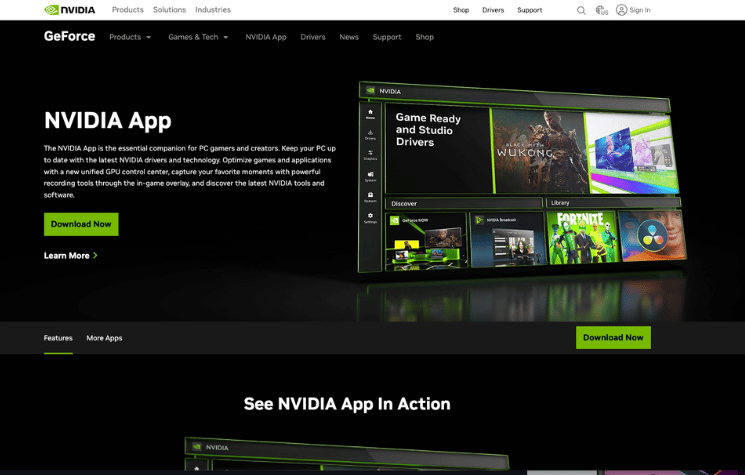
It handles driver updates, game optimization, and display settings — the same core functions as GeForce Experience — without the persistent service dependency issues that cause 0x0003. NVIDIA’s current documentation directs users toward the new app for ongoing support.
Download from nvidia.com/en-us/software/nvidia-app/ if you want to stop fighting the old app.
How to Prevent 0x0003 Coming Back
Set all four NVIDIA services to Automatic startup right now. Windows updates frequently reset them to Manual, which causes the error to return weeks later.
Always download drivers directly from nvidia.com/drivers — not Windows Update or third-party sites. Third-party sources bundle software that conflicts with NVIDIA components.
Create a restore point before every major Windows update. Takes 30 seconds. Saves hours.
Add the NVIDIA Corporation folder to your antivirus exceptions. Security software updates can suddenly start flagging NVIDIA processes as suspicious.
Quick Reference Table
| Fix | Time Needed | Success Rate | Best For |
| Run as administrator | 2 mins | Quick test | Permissions issues |
| Restart NVIDIA services | 5 mins | ~60% | Most cases |
| Unblock Telemetry Container | 5 mins | High for older GFE | Missing desktop interaction |
| Disable VPN/antivirus | 5 mins | Variable | Security software blocking |
| Reset Winsock | 5 mins | High for network cases | After Windows updates |
| SFC scan | 15-20 mins | Moderate | System file corruption |
| Clean DDU reinstall | 30-45 mins | ~85% | Persistent/corrupted installs |
FAQ
Why does 0x0003 keep coming back after a reboot?
One or more NVIDIA services are set to Manual startup instead of Automatic. After each reboot, they don’t start, and GeForce Experience fails. Fix 2 above — setting all services to Automatic and enabling desktop interaction — permanently resolves this.
Will a clean driver reinstall and delete my game settings?
No. Game settings are stored separately and are unaffected. GeForce Experience settings may reset, but your in-game configurations stay intact. Your GPU settings in NVIDIA Control Panel will reset — screenshot them first if you have custom configurations.
Can antivirus cause error 0x0003?
Yes. VPNs, firewalls, and antivirus programs can block NVIDIA services from binding to network ports. Temporarily disable them and test. If GeForce Experience opens, add NVIDIA to your exceptions list permanently.
Is error 0x0003 the same as error 0x0001?
No. 0x0001 is a different error. 0x0003 specifically relates to service startup and network communication failures.
Is GeForce Experience being discontinued?
NVIDIA treats GeForce Experience as legacy software and is actively pushing users toward the NVIDIA App as its replacement. If you keep hitting 0x0003, switching to the NVIDIA App is worth considering.